
Loading article…
Task Scheduler (formerly Scheduled Tasks)[1] is a job scheduler in Microsoft Windows that launches computer programs or scripts at pre-defined times or after specified time intervals.[2][3] Microsoft introduced this component in the Microsoft Plus! for Windows 95 as System Agent.[4] Its core component is an eponymous Windows service.[5] The Windows Task Scheduler infrastructure is the basis for the Windows PowerShell scheduled jobs feature introduced with PowerShell v3.[6]
Task Scheduler can be compared to cron or anacron on Unix-likeoperating systems. This service should not be confused with the scheduler, which is a core component of the OS kernel that allocates CPU resources to processes already running.
Task Scheduler 1.0 is included with Windows NT 4.0[7] (with Internet Explorer 4.0 or later), Windows 2000,[7]Windows XP[8] and Windows Server 2003.[9] It runs as a Windows Service, and the task definitions and schedules are stored in binary.job files. Tasks are manipulated directly by manipulating the .job files. Each task corresponds to single action. On Windows 95 (with Internet Explorer 4.0 or later), Windows 98 and Windows Me, the Task Scheduler runs as an ordinary program, mstask.exe. It also displays a status icon in the notification area on Windows 95 and Windows 98 and runs as a hidden service on Windows Me, but can be made to show a tray icon.[1] Computer programs and scripts can access the service through six COMinterfaces.[10] Microsoft provides a scheduling agent DLL, a sample VBScript and a configuration file to automate Task Scheduler.[11]
コントロール パネルのタスク スケジューラのグラフィカル ユーザー インターフェイスに加えて、Windows はスケジュールされたタスクを管理するための 2 つのコマンドライン ツールを提供しています。at.exe(非推奨) [ 12 ]とschtasks.exe。[ 5 ] [ 13 ] [ 14 ]ただし、 はat.exeコントロール パネルまたは によって作成または変更されたタスクにアクセスできませんschtasks.exe。[ 15 ]また、 で作成されたタスクはat.exe デフォルトでは対話型ではありません。対話型にするには明示的に要求する必要があります。 AT コマンドによって生成されるバイナリ ".job" ファイルは、%WINDIR%\Tasks ディレクトリに保存されます。[ 16 ] [ 17 ]
タスク スケジューラ 2.0 はWindows Vista [ 18 ]で導入され、 Windows Server 2008にも含まれています。[ 19 ] [ 9 ]再設計されたタスク スケジューラのユーザー インターフェイスは、管理コンソールに基づいています。 タスク スケジューラ 2.0 は、スケジュールされた時間または指定された間隔でタスクを実行するだけでなく、カレンダー ベースおよびイベント ベースのトリガーもサポートしています。たとえば、特定のイベントがイベント ログに記録されたとき、または複数のイベントの組み合わせが発生したときにタスクを開始します。 また、同じイベントによってトリガーされる複数のタスクは、複数のスケジュール タスクを作成する代わりに、同時に、または一連のアクションの事前に決定された連鎖シーケンスで実行するように構成できます。 タスクは、事前に構成された時間アイドル状態である、起動時[ 20 ] 、ログオフ時、または指定された時間の間のみなど、システム ステータスに基づいて実行するように構成することもできます。XPath式を使用して、Windows イベント ログからイベントをフィルタリングできます。タスクは、トリガー イベントが発生した後、指定された時間だけ遅延させたり、別のイベントが発生するまで繰り返したりすることもできます。タスクが失敗した場合に実行する必要のあるアクションも構成できます。イベント ベースと時間ベースの両方のトリガーに応答して実行できるアクションには、アプリケーションの起動だけでなく、多数のカスタム アクションの実行も含まれます。タスク スケジューラには、電子メールの送信、メッセージ ボックスの表示、トリガーされたときのCOMハンドラの起動など、多数のアプリケーションにまたがる多数の組み込みアクションが含まれています。タスク スケジューラ API を使用してカスタム アクションを指定することもできます。タスク スケジューラは、すべてのタスクのすべての実行の詳細の履歴ログを保持します。[ 21 ] Windows Vista は、さまざまなシステム レベルのタスクを実行するためにタスク スケジューラ 2.0 を使用します。[ 22 ]そのため、タスク スケジューラ サービスは、(簡単なレジストリの変更を除いて)無効にすることができなくなりました。
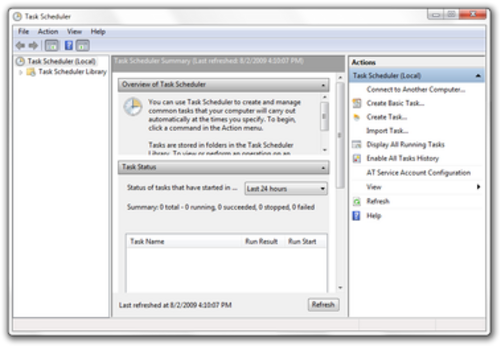
タスク スケジューラ 2.0 は、コンピュータ プログラムやスクリプトがタスクを作成できるようにするAPIを公開しています。[ 19 ] [ 23 ] 42 個のCOMインターフェイスで構成されています。[ 24 ]ただし、Windows API にはタスク スケジューラのマネージドラッパーは含まれていませんが、オープンソースの実装は存在します。[ 25 ]タスク スケジューラ 2.0 のジョブ ファイルはXMLベースで、タスク スケジューラ スキーマに準拠しており、人間が読みやすい形式です。[ 19 ] [ 23 ]
タスク スケジューラ サービスは、タスクを管理することによって機能します。タスクとは、トリガーに応じて実行されるアクション (または複数のアクション) を指します。タスクは、アプリケーションの起動やカスタム定義のアクションの実行など、一連のアクションを、時間ベースまたはイベントベースのトリガーのセットに関連付けることによって定義されます。さらに、タスクには、タスクが実行されるセキュリティ コンテキストなど、アクションの実行方法を定義するメタデータを含めることもできます。タスクは.jobファイルにシリアル化され、サブディレクトリに整理された「タスク フォルダー」という名前の特別なフォルダーに保存されます。プログラム的には、タスク フォルダーにはインターフェイスまたはスクリプト オブジェクトを使用してアクセスし、個々のタスクにはインターフェイスまたはオブジェクトを使用してアクセスします。[ 26 ]ITaskFolderTaskFolderIRegisteredTaskRegisteredTask
「最終結果」列には完了コードが表示されます。スケジュールされたタスクの一般的なコードは次のとおりです。[ 27 ] [ 28 ]
On Windows 2000 and Windows XP, when a computer is prepared for disk imaging with the sysprep utility, it cannot run tasks configured to run in the context of the SYSTEM account. Sysprep changes the security identifier (SID) to avoid duplication but does not update scheduled tasks to use the new SID. Consequently, the affected tasks fail to run. There is no solution for this problem but one may reschedule the affected tasks to work around the issue.[29]
On Windows Vista or Windows Server 2008, the next execution time displayed in Task Scheduler may be wrong. Microsoft issued a hotfix to remedy this issue.[30]